Amazon Author Central: set up your author page.
Amazon Author Central is where you claim your author page on Amazon: the page with your bio and every one of your books in one place. It is free and takes about half an hour. This guide shows how to join, what to put on the page for a nonfiction book, how to get your formats linked, and what the data is good for.
About the sources. Every step and feature below was read on KDP's own help pages on October 29, 2026, and is linked at the end. Amazon changes Author Central, so check the linked pages if a button has moved.
What Author Central does
KDP's help page describes Author Central as the way to create an Author Page, where you share information about yourself and your books so readers can find all of them in one place. Once you have joined, it lists what you can do:
- Books. Add your books to your Author Page.
- Biography. Add your biography, in more than one language if you need it.
- Editorial reviews. Add editorial reviews to your books (US only).
- Sales information. See BookScan sales information (US only), your Amazon Best Sellers Rank and your customer reviews.
- Followers. See how many people follow you. KDP says readers can click Follow on your Author Page or a book's detail page, and followers may be told about your new releases or pre-orders, depending on eligibility and their email settings.
That makes it one of the few free things on Amazon that you control directly. Everyone you send to your book from a talk, a podcast or a LinkedIn post can land on a page that says who you are and what else you have written.
How to join and claim your books
1. Start from KDP
In KDP, open the Marketing page. In the Author Central section, choose your marketplace and click "Manage author page."
2. Join for free
On Author Central, click "Join for free" and sign in with your KDP account.
3. Find your book
Search for a book you wrote by its ISBN, its ASIN or your author name, then click the book.
4. Confirm it is yours
Click "Yes, join as" your author name. That claims your Author Page.
5. Add your other books
Add every book you have written, so the page shows your whole body of work in one place.
If your book was published with a co-author or under a slightly different spelling of your name, use the exact name on the book. Matching names matter for linking, below.
Write the bio for your reader
For a nonfiction author, the bio does most of the work on this page. Write it for the reader of the book, not for your peers:
- Who you help. One sentence: the reader and the problem your book solves for them.
- Why you. What you have done that matters to that reader: the work, the years, the results you can stand behind.
- Where to go next. Your website or newsletter, so a reader who wants more can find you.
Keep it in the third person and use the same description everywhere: your website, your LinkedIn profile, your podcast pitches. Scribe Media's chapter How to write your author bio has a structure to follow. If you sell in more than one language, KDP's help page says you can add the bio in different languages.
Editorial reviews
KDP lists editorial reviews as a US-only Author Central feature. For a business book, this is where the endorsements on your cover and inside the front matter belong: a sentence or two from people your reader respects, with their name and role. Use only endorsements you actually received, in the words the person approved. If you have a quote from a review in a publication, credit the publication.
Get your formats linked
Readers expect to see the Kindle, paperback and hardcover editions on one detail page. KDP's help page on linking says Amazon tries to link formats when these details match exactly: title, subtitle, author, contributors, series, language, edition and volume, plus the interior type (black and white or color) for paperback and hardcover.
- Same account. KDP says the formats must all be published through KDP, under the same account.
- Give it a week. Linking usually takes up to a week after each edition is live.
- Claim the books. KDP says that after you claim your books in Author Central and the details match, including author name and title, linking happens automatically.
- One language per page. Amazon cannot link editions in different languages on the same detail page.
If the editions are still separate after those checks, KDP says to contact it with the ebook's ASIN and the print edition's 10-digit ISBN.
Which Amazon stores it covers
| Store | Author Central |
|---|---|
| Amazon.com, .co.uk, .de, .fr, .co.jp, .com.br | Fully supported: you manage the page in that marketplace |
| Amazon.in, .it, .es, .com.au, .ca, .com.mx | Amazon creates an author page where you have books, using information from the US marketplace, which currently cannot be edited |
So if most of your readers are in the UK or Germany, set up those marketplaces too. For Canada and Australia, the US page is the one to get right.
What the numbers are for
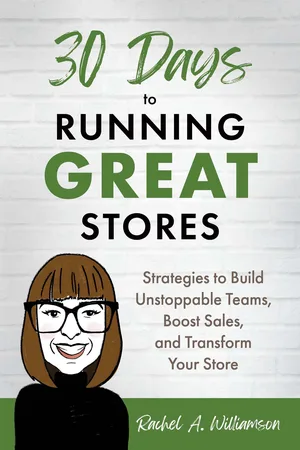
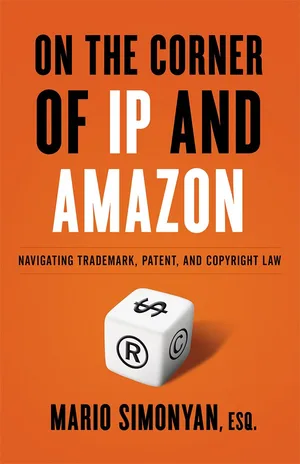
BookScan sales and Best Sellers Rank are useful for one thing: seeing where copies are moving, such as a city after a talk. They are not the measure of a business book. A "#1" badge in a category is real and nice to have, but neither of these authors' books was written for the badge: